

React uses the javascript library to create efficient user interfaces of web applications in an effective way. It helps us to compose small pieces of code from complex UIs. It’ll update the right component when data changes and allow us to create fast and simple web applications.
First of all, you’ve to install “NodeJs”. If you don’t have “NodeJs” in your local machine then you should install it from here. You’ve to install the LTS Version of NodeJs according to the bit of your computer.
Now we are going to create react app…
*First command: “**npx create-react-app first -app”*
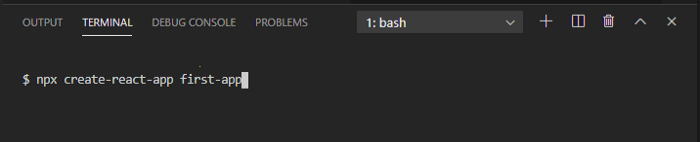
It will take some time to install.
If you’ve previously installed “create-react-app” globally via “npm install -g create-react-app”, we recommend you uninstall the package using “npm uninstall -g create-react-app” to ensure that npx always uses the latest version.
“npx” is a package runner tool that comes with npm 5.2+ and higher. It is easier to work with updated versions for being *competitive with browser and vs code.
“create-react-app” is the command to build the react app.
“first-app” is the command we where we’ve to be careful. This will be our app name so we’ve to choose a meaningful name here. Here we’ve used the “first-app” name to create our react app. Every time we want to create a react app we’ve to choose a name that is something related to our work that can express our goal.
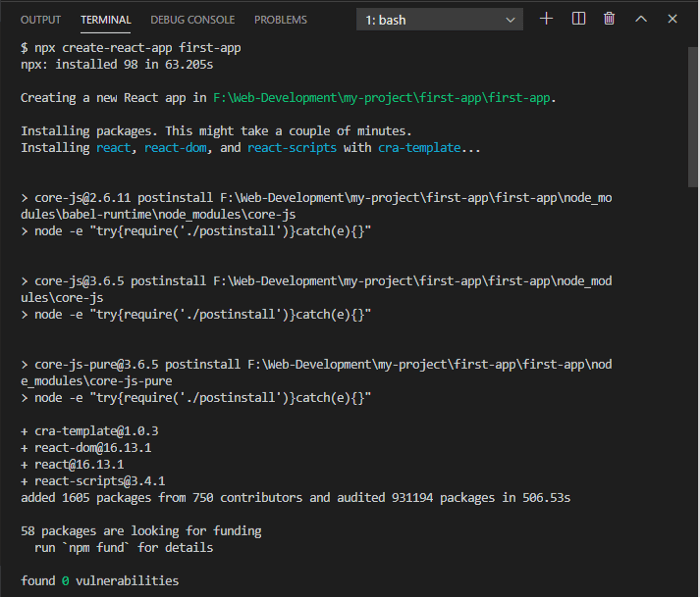
Here we can see in the terminal window that npx is downloading the necessary data to run react app.
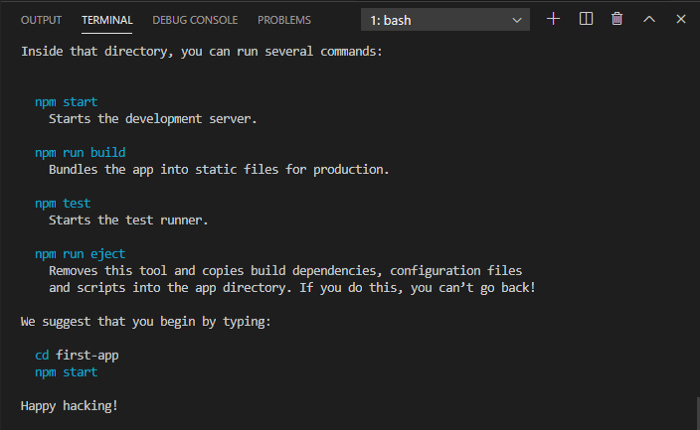
Here we can see react app installation complete message in the terminal window.
After installation, it will create a directory called “first-app” inside the current folder of your desired location. Inside that directory, it will generate the initial project structure and install all the transitive dependencies.
Here we can see no configuration or complicated folder structures is there, just only the files you will need to build your app. Now, you can open your directory as the installation is done.

Here node_modules is full with many folders made by react developers. There are many webpack and babel preconfigured and hidden here. So you don't have to focus on this folder. As a beginner, you just ignore the folder and don't touch it.
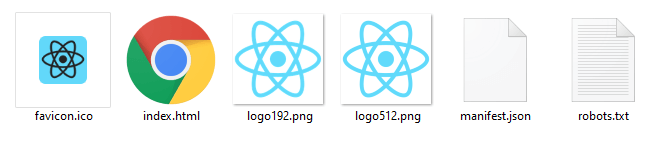
The public folder contains the index.html file and favicon for the website and other logos. If you want to change the favicon you’ve to replace the favicon here or
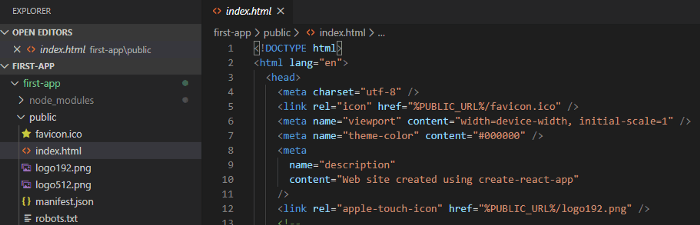
you can change the code in vs code to get a new favicon.
As a developer, all your focus will be in* the src* folder. In this folder, you will put

your app file is here. Here you can create a folder as your requirement, you can create a folder later you can import a file of the folder in the vs code.
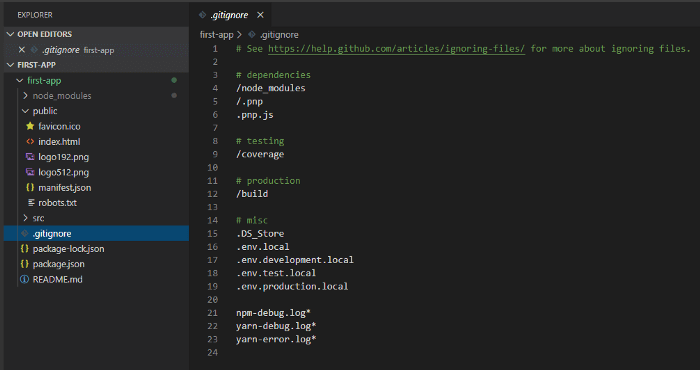
Here we are going to discuss the .gitignor file. The file that we don’t wanna share in public or push in Github, will store here.
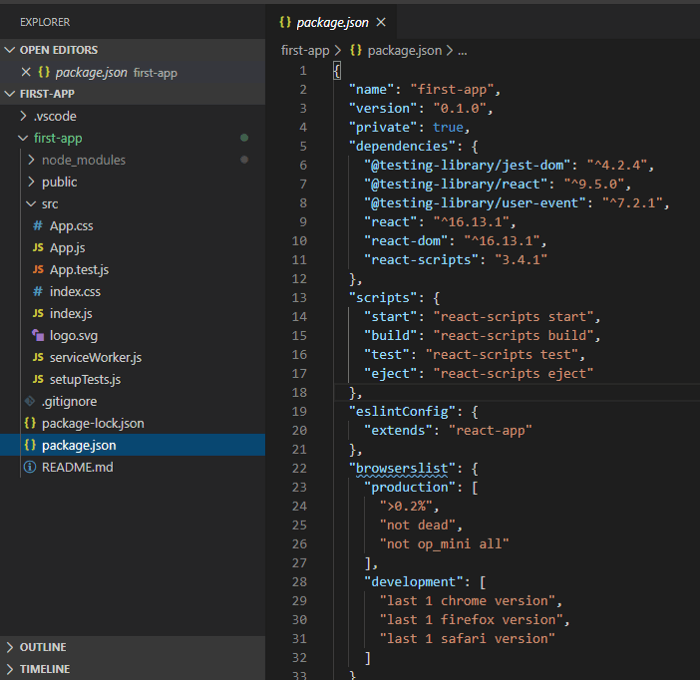
In the package.json file, we can see that the dependencies file will store in here. Web apps may require other dependencies than we have to install them, other dependencies files will also store in here.
After the first command, we’ve familiar with react app directory. Now we are going to command our code to launch the app.
Second Command: “cd first-app”
Here cd means change directory. We are going to change our directory to connect vs code to app file stored in the directory.
Third Command: “npm start”
In this command, npm will launch the app. A new window will open in the browser. In vs code, we can see the successful compilation message.
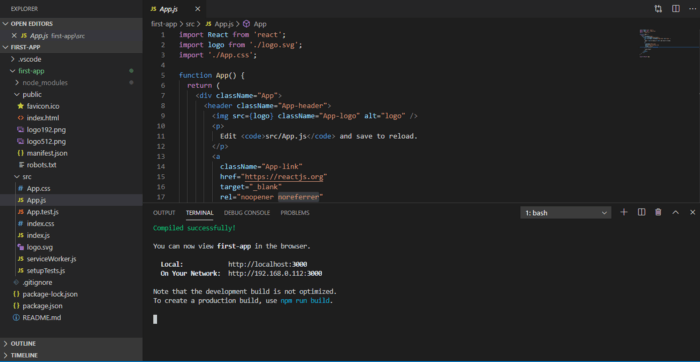
In the browser, we can see port: http://localhost:3000/ which is launching our app.
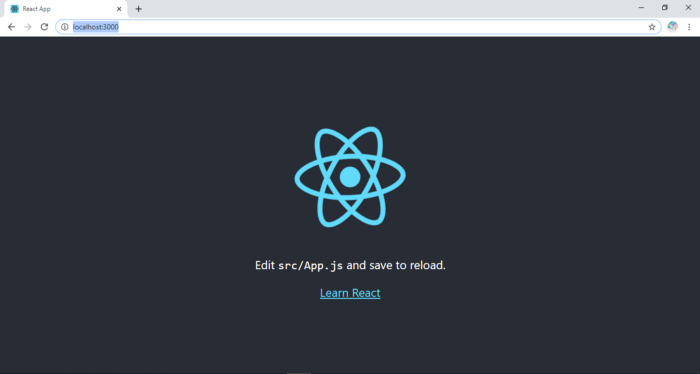 Congratulation you’ve created your first react app. Now explore...
If you wanna learn more about react, you can read the official documentation of react here https://reactjs.org/docs/create-a-new-react-app.html